Posts

Showing posts with the label ubuntu

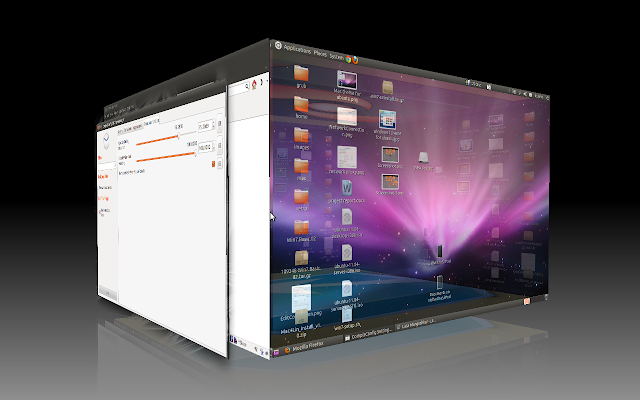
3D cube effects in Ubuntu Linux
Image
3D cube effects in Ubuntu Linux This will enable the 3D desktop cube in Ubuntu Classic mode, to enable the 3D desktop with Ubuntu unity see 3D Desktop cube with ubuntu unity. To get the Ubuntu Linux 3D Desktop cube and other Ubuntu desktop effects. First you need to install the compiz.It can be install by either of the two ways. But I recommend Synaptic manager as other plug-ins need to be install. In terminal paste the command . sudo apt-get install compizconfig-settings-manager. Or open the synaptic manager.Click on Search icon and search Compiz . In the appear list select compizconfig-settings-manager and compiz-fusion-plugins-extra . Second plugin for other Ubuntu desktop effects.     To apply this 3D cube desktop effects . Open up the Compiz Setting Manager via System->Preferences->CompizConfig Settings Manager . Follow the following steps. 1. You need 4 workspaces or Desktop for cube effects.In compiz settings manager select General options -> Desktop Size...
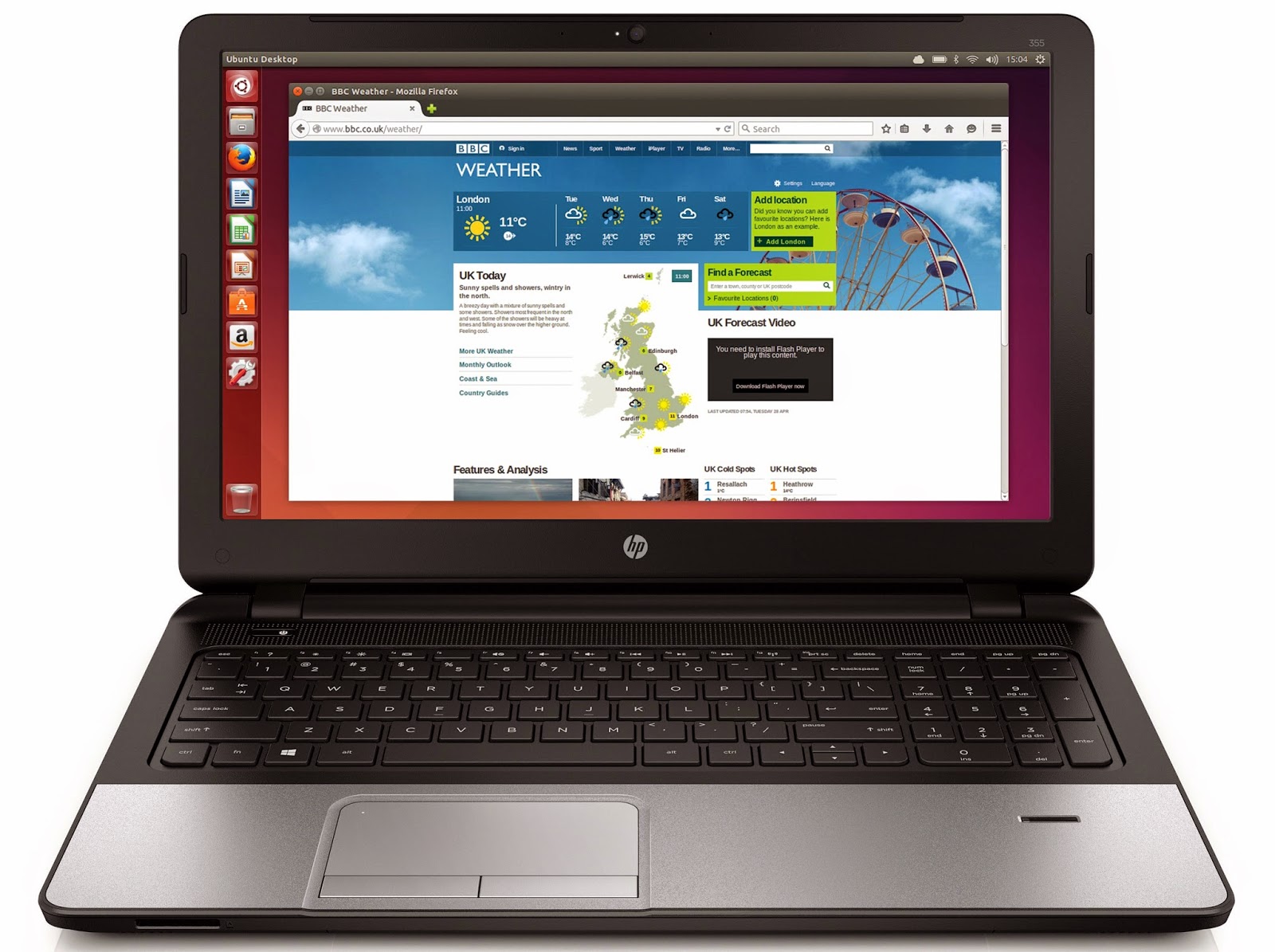
3 New Ubuntu Powered HP Laptops From Ebuyer

Image
3 New Ubuntu Powered HP Laptops From Ebuyer Now this is interesting. If you are in the market of an Ubuntu pre-loaded laptop, youre in for a treat. Just last month, Dell launched Ubuntu variants of its stunning XPS 13 line of Ultrabooks. Now Ebuyer, a big UK based online Computer retailer, has introduced 3 new AMD powered HP laptops running the latest from Ubuntu. Momentum is clearly building in Ubuntus favour.  AMD Powered HP Laptops running Ubuntu HP 255 G3 Quad Core, HP 355 G3 Quad Core and HP 455 G3 Quad Core. Ebuyer, an online retailer based in UK, has launched 3 brand new Ubuntu pre-loaded laptops running the latest and greatest from Ubuntu. Spec sheet and price below: Now, Ebuyer is not new to the seen either. They launched their first Ubuntu powered laptops back in April 2014 (here). Seems like they had a decent response from customers. Now they are looking to expand their Ubuntu portfolio by introducing new products. The laptops are pre-installed with Ubuntu 14.0...

3 Ways to remove PPAs on Ubuntu

Image
3 Ways to remove PPAs on Ubuntu PPAs (Personal Package Archives) are software repositories used by Ubuntu and some of its derivatives. PPAs provide an easy way for developers to deliver updated software automatically to Linux users by uploading source packages to Launchpad. Most of the time there's no need to use a PPA, because common software packages are already in the official repositories. But for custom builds, latest versions or simply packages that you can't find in the default repositories you need to use a PPA. Sometimes, a PPA may not be needed anymore. Maybe the package from PPA has been added or updated also in the default repositories. Or you plan to upgrade the OS to a newer version and the packages for this version weren't yet built in the PPA (to prevent errors in this situation, Ubuntu automatically disables third party PPAs when upgrading). Or the PPA may not be maintained anymore and you get errors when updating apt cache. Read more �

4 Tricks to Speed Up Ubuntu

Image
4 Tricks to Speed Up Ubuntu Published on Feb 1, 2013 This week Im showing you some tried and true ways to get the most performance out of your Ubuntu box. Add me: ||http://bit.ly/nixgoogleplus Code used in Video (in order of appearance) * Show Hidden Startup Apps: sudo sed -i "s/NoDisplay=true/NoDisplay=false/g �" /etc/xdg/autostart/*.desktop * Install Preload from Software Center * Change Swappiness Value 1. Run terminal 2. Enter following line to see current swappiness value cat /proc/sys/vm/swappiness (default value in Ubuntu for swappiness is 60) 3. Open file /etc/sysctl.conf in a text editor, I did gedit /etc/sysctl.conf 4. nter the following parameter # Decrease swappiness value vm.swappiness=10 5. Save the file and restart the computer Source: http://www.youtube.com/watch?v=vwBoHZuauL8

3 Ways To Install Calibre e book library management application On Ubuntu 16 04

Image
3 Ways To Install Calibre e book library management application On Ubuntu 16 04 How To Install Calibre on Ubuntu 16.04    Please Donate Here! Calibre is a free and open source e-book library management application developed by users of e-books for users of e-books in Ubuntu. We can organize our ebook collections in one place. We can manage our Kindle device with it. We can convert an ebook format into another. Even we can edit our ebooks. Now, I will show you how to install Calibre in Ubuntu 16.04. 1**By GUI, you can install Calibre via Ubuntu Software Center. Search for calibre and install.  2**By Terminal, you can use this command. You must activate your internet connection.    sudo apt-get install calibre    3** By Visiting Calibre website using the Binary install described here. https://calibre-ebook.com/download_linux The latest release of calibre is 2.53.0. Whats new. Please do not use your distribution provided calibre packa...

3 Tools For Chemistry Students Using Ubuntu

Image
3 Tools For Chemistry Students Using Ubuntu BKChem is a chemical drawing Ubuntu chemistry software that�s packed with features. Drawing bond-by-bond drawing bond lenght and angle restrictions to assist with the drawing ready to use templates of common rings ability to expand common groups from abbreviated to structural form Support for linear formulas (such as -CH2CH(COOCH3)2) radicals, charges... arrows (several types - normal, retro, equilibrium, etc.) rich text color support simple vector graphics (rectangles, circles, polygons etc.) Editing unlimited undo and redo capabilities aligning scaling rotation (2D, 3D) aligning of molecules so that particular bond is horizontal/vertical rotation of molecular fragments around bonds (conformation changes) definition of personal preferred drawing style (bond lenghts, widths, colors...) Export full export to SVG (native data are transparently embedded into SVG file) full export to OpenOffice Draw format full export to ODF (OpenOffice 2.0) for...

3 Ways to install VirtualBox in Ubuntu

Image
3 Ways to install VirtualBox in Ubuntu VirtualBox is a free virtualization software developed by Oracle. It runs on and can run all major operating systems. If your host computer has enough resources, VirtualBox can run multiple virtual machines at a time. It can also take screenshots and record screen of virtual machines. Overall it is a great tool for anyone looking to test new operating systems without making any changes to the host computer. This post will describe three installation procedures for Linux (Ubuntu). You can install VirtualBox from the default repositories, from Oracle repositories or from deb file. Each has its advantages and disadvantages. Of course, the best method is the one that brings you the best results. VirtualBox main window Read more �

3 Best Bitcoin Clients for Ubuntu

Image
3 Best Bitcoin Clients for Ubuntu Bitcoin is going to be big, we predicted way back in 2010. The value of Bitcoin soared from a little over 1 USD in 2011 to a mammoth 1000 USD in 2013. Bitcoin is now a world-wide phenomenon with nearly 100,000 transactions every day. The revolutionary new "internet currency" is changing the world as we know it. Be it any platform, if you want to use Bitcoins, you have to have reliable Bitcoin clients. And here well discuss 3 of the best free Bitcoin clients available for Ubuntu (and Linux) and the required steps for installing each one of them. The biggest priority as far as a Bitcoin user is concerned is security, and MultiBit bitcoin client is a perfect blend of security and functionality. MultiBit is free to download, is very easy to install and is open source (MIT license). It is a very good wallet management software for Bitcoin beginners with many advanced features such as  the support for multiple wallets, locally stored encrypted priv...

3 Ways to Create Wifi Hotspot in Ubuntu 14 04 Android Support

Image
3 Ways to Create Wifi Hotspot in Ubuntu 14 04 Android Support Dear readers, I�ve found a new way to create wireless hotspot in Ubuntu, AP mode with Android devices support, using Unity�s Network Manager. After this tutorial, I�ve found 3 ways to create wifi hotspot in ap mode: Using  Ap-hotspot , an open-source app from github: see  this post . Using  KDE connection editor , see  the post . Using Unity�s Default Network Manager with a little hack. See below Below I will show you how to use Unity�s default network manager to create a wireless hotspot with Android devices support, tested in 64-bit Ubuntu 1404 with Nexus 4 and Sumsung Galaxy ace3. 1.  Disable WIFI and plug in an internet cable to your laptop so that your Ubuntu is connect to a wired internet and wireless is disabled. 2.  Go to Network Icon on top panel -> Edit Connections �, then click the  Add  button in the pop-up window. 3.  Choose  Wi-Fi  from the drop-down menu...